Documentation
How to take part as a participant, a judge, or an admin.
Participants
Build a project with your team and submit it before the deadline.
Sign up
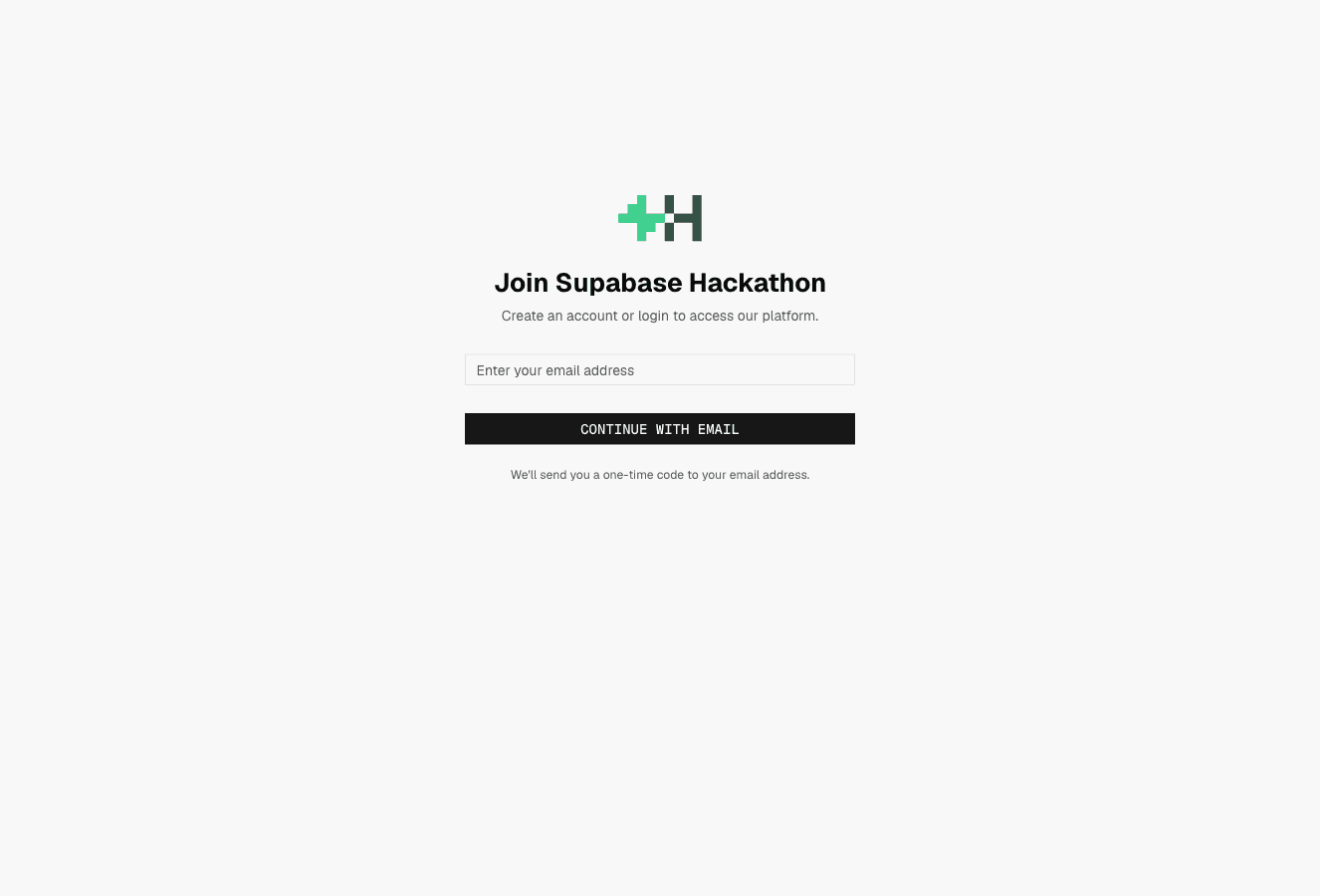
You sign in with a six-digit code. Enter your email and we send you the code. There is no password to remember. The first time you sign in, we ask for your name.
- Open the app and click Sign in with Email.
- Enter your email and click Continue with Email.
- Open the email from us. To sign in, enter the six-digit code in the app or click the link in the email.
- The first time, enter your first and last name.
Create a team
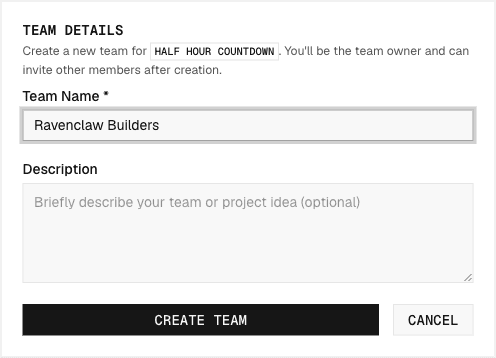
Every project belongs to a team, even a team of one. Create your team before you start building. You become the team owner.
- Open Teams and click Create a team.
- Name your team.
- You are now the owner and can invite others.
Invite teammates
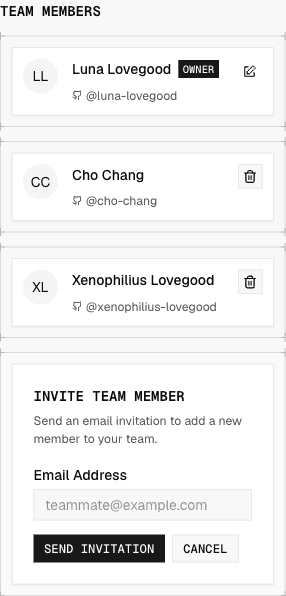
Add the people building with you. We email each of them an invite link. They click it, sign in, and join your team.
- Open your team page.
- Enter a teammate's email and send the invite. Add more than one at a time if you need to.
- Pending invites show on the team page. Resend one if it expired or did not arrive.
Set up your profile
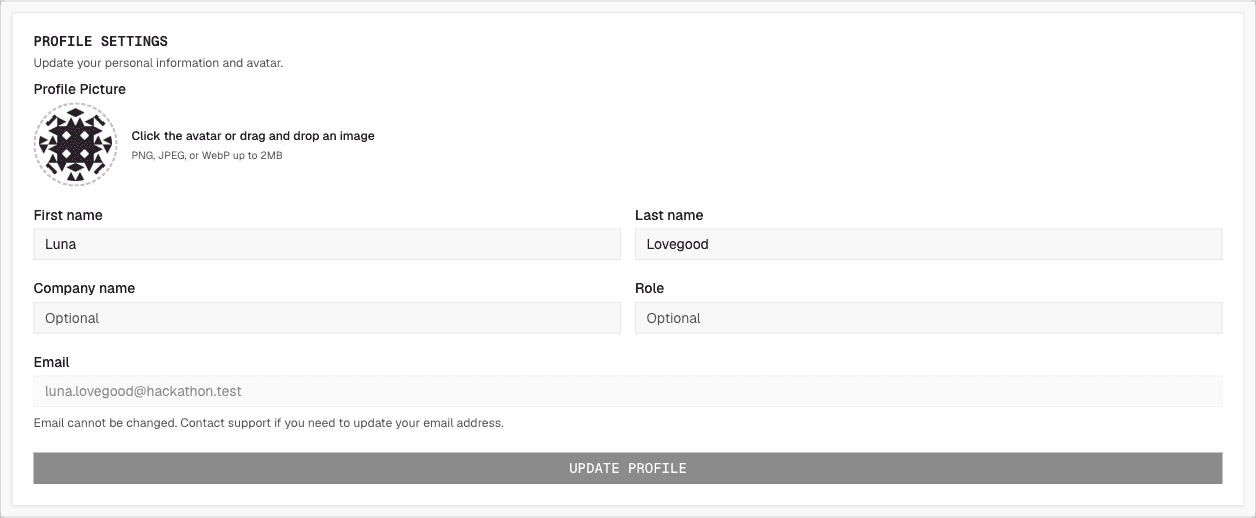
Your profile is how you appear to teammates, judges, and our partners. Add your company, role, and social handles, and upload a photo. Without a photo we show your Gravatar.
- Open Settings.
- Fill in Profile Settings: name, company, role, and photo.
- Add your Social Handles.
Submit a project
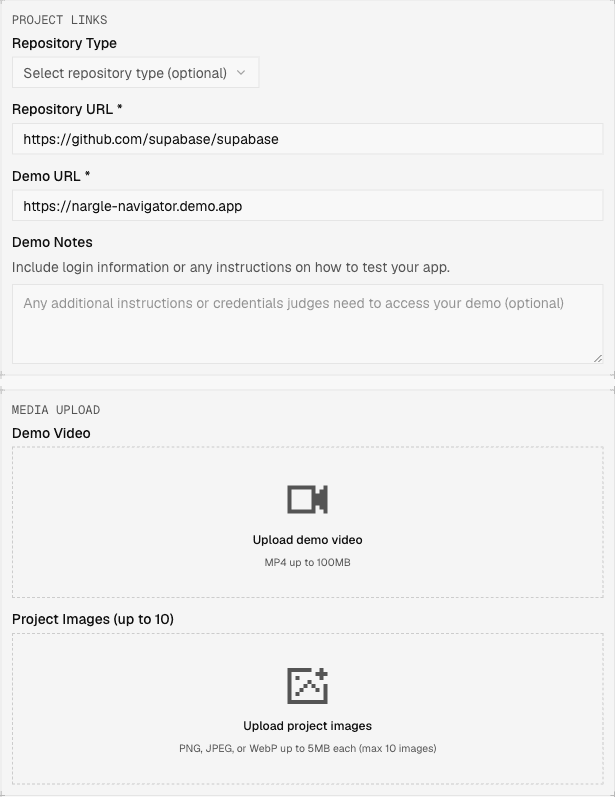
Open your team's project and fill in the title, description, the coding tools you used, your repository link, a demo link, and screenshots. You can submit as soon as the event opens, and you can keep editing after you submit.
Always submit by the deadline
The editor shows a live countdown to the deadline.

Submit from ChatGPT or Claude (Experimental. New for this hackathon.)
You can finish your submission from ChatGPT, Claude, or Grok. Add the hackathon MCP server, sign in, and ask the client to update your project. It can set the title, description, repository, and demo, then submit before the deadline.
- Open Settings and find MCP Server.
- Add /api/mcp as a custom MCP connector. The client walks you through sign-in.
- For Claude Desktop or Grok, create a token and paste it as a bearer header.
- Ask the client to update and submit your project. It still has to meet the same required fields as the website.
Secrets to a great submission
A judge spends a few minutes with your project.
- Add screenshots. Show the product before a judge opens anything.
- Add a good demo video. A short walkthrough beats a cold start.
- Include a public repository. Judges look at the code, and you should not expect them to clone and run your project.
- Host your project live so judges can try it in the browser.
- Provide a login and instructions. If the product needs an account, give the judges one that works.
Data sharing consent
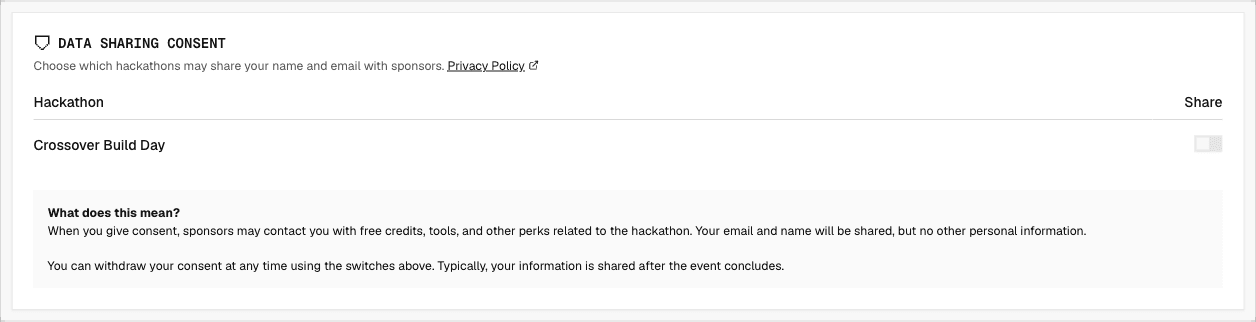
We invite partners to take part in our hackathons. You choose whether they get access to your data. In exchange for sharing, you get free stuff. You control this per hackathon from your settings, and you can change your mind at any time.
Fair play
We set the rules up front. Deadlines are one of them. You can bring in code, libraries, even skeleton projects from past work. We welcome it, and we encourage it.
Judges
Score the projects you are assigned, fairly and on time.
Receiving an invitation
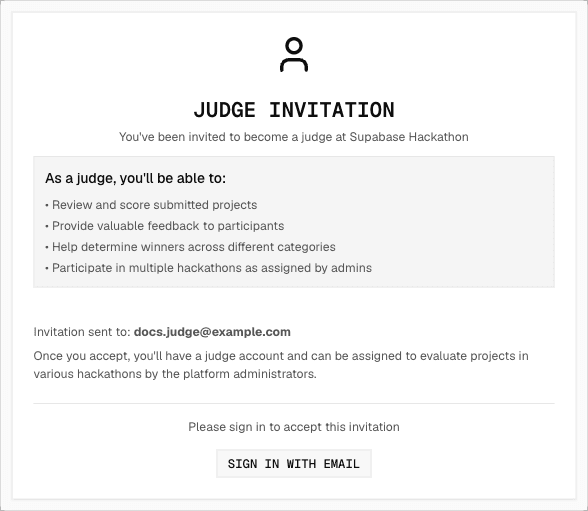
An admin invites you by email. Click the link in the invitation to accept it and create your judge account. If the link has expired, ask the admin to resend it.
Fill out your profile
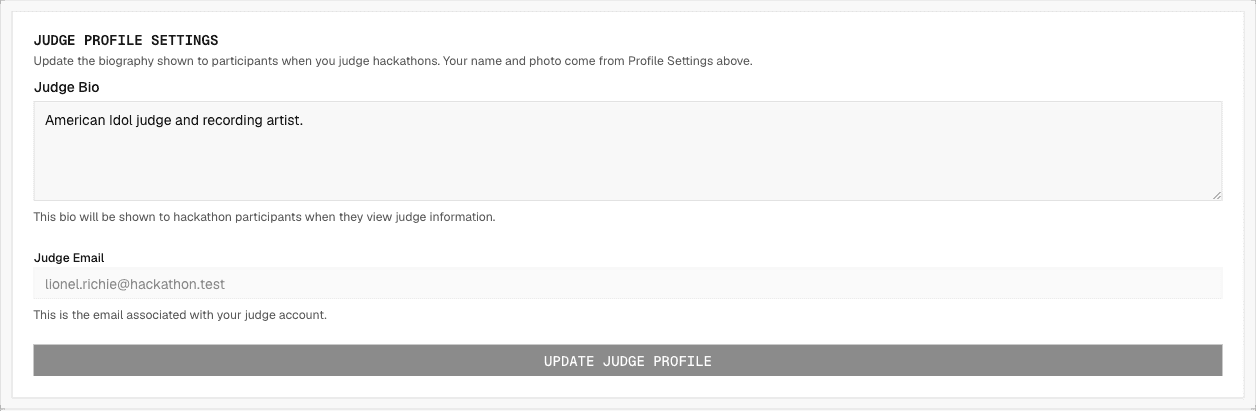
Add your name, photo, and a short bio. Participants see your bio when they view judge information. Write a sentence or two on your background and what you look for in a project.
- Open Settings.
- Set your name and photo in Profile Settings.
- Write your Judge Bio in Judge Profile Settings.
Pick a hackathon to judge
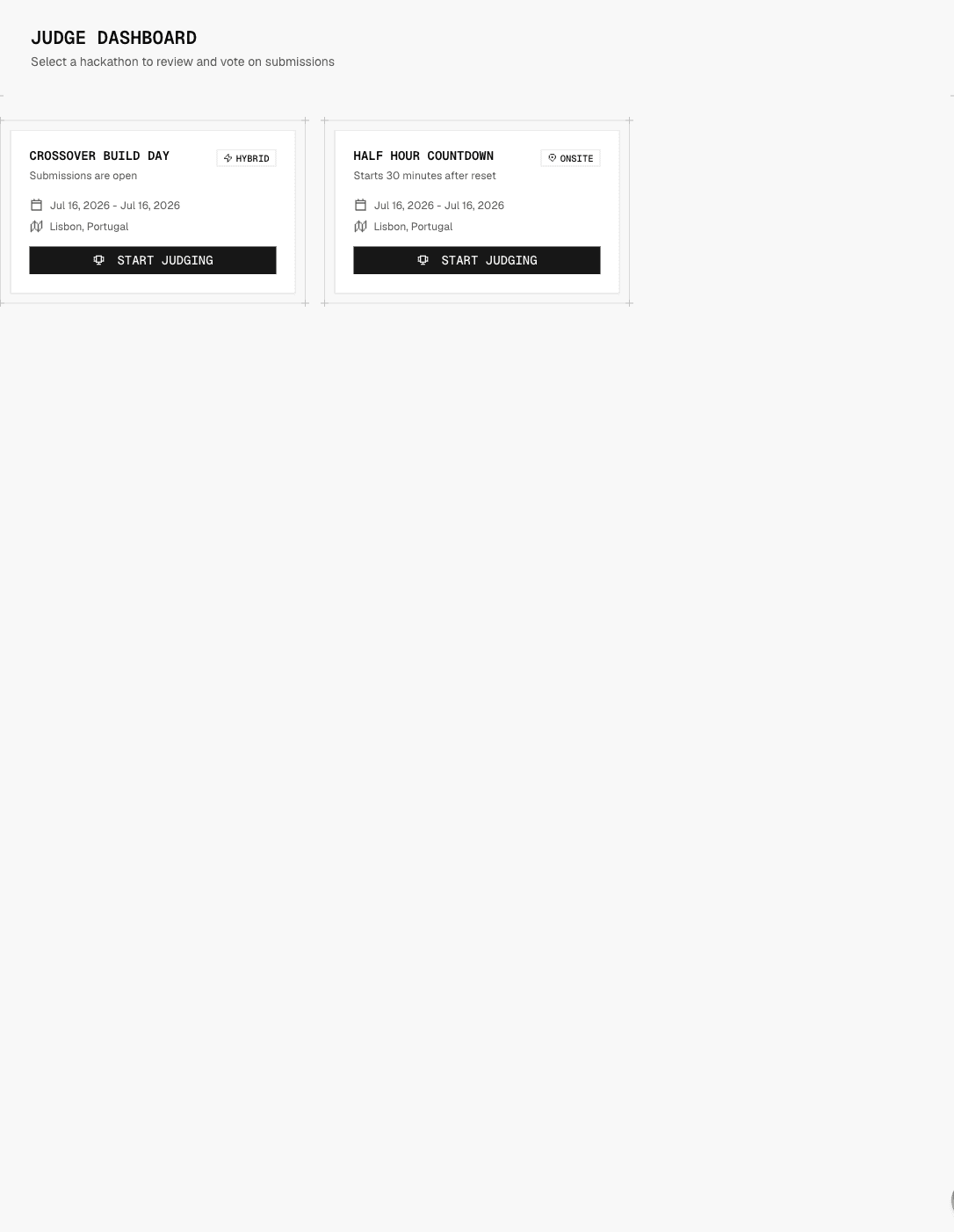
Your judge portal lists the hackathons you are assigned to. Pick one to start judging.
How projects are assigned
Projects are assigned at random across the judging pool. Depending on the way a hackathon is set up, a project may only be evaluated by one judge. So take your time and evaluate carefully.
Evaluating a project
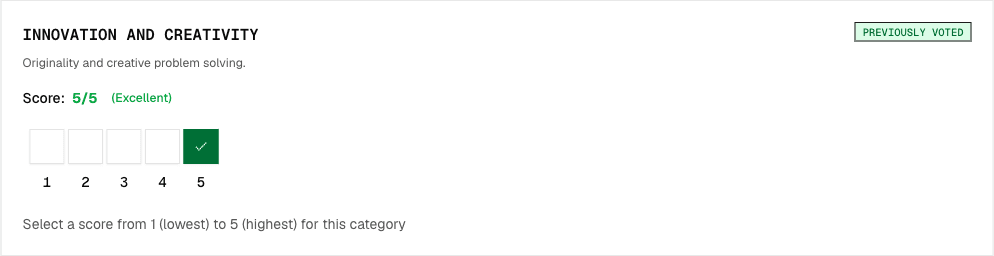
Each hackathon has its own criteria. You rate each project on each criterion on a scale of 1 to 5. Open a project to see its details, its repository, its demo, and its screenshots, then score it.
If you judge a bonus category, you score only that category, and only on the projects that entered it. You can keep changing those scores after the rest of judging ends.
To name the winner of your bonus category, open the Overview tab and click Identify Winner next to the category. Check the winning project and click Select and Save. You can change the winner as often as you like.
Submitting your votes
Submit your votes once you are done evaluating. You can resubmit up until every project has been judged.

Judge from ChatGPT or Claude (Experimental. New for this hackathon.)
You can score assigned projects from a chat client. Connect the same MCP server participants use. It only shows the projects assigned to you, and it saves 1-5 scores against the same categories as the website.
- Connect the MCP server from Settings.
- Ask for your assigned projects and the scoring criteria.
- Submit scores for every applicable category. Private notes stay with you.
Seeing the results
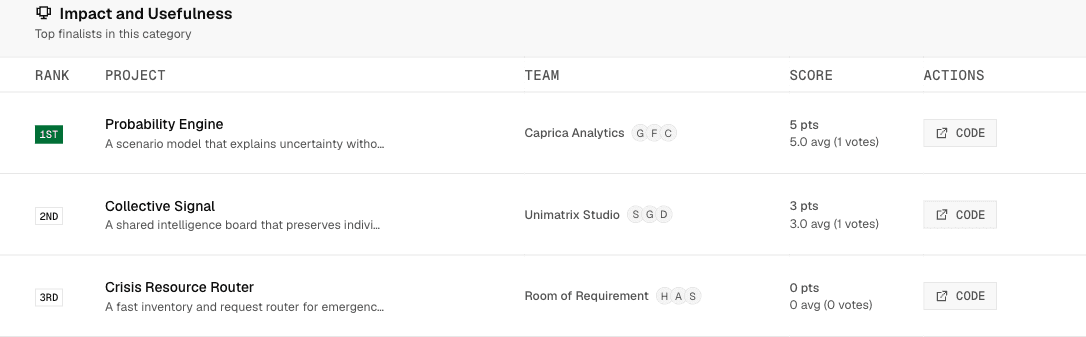
Click the Overview tab to see the top projects in each category. Once the admins have tallied the total results and announced finalists, they appear in the dashboard too.
Generating a participation letter
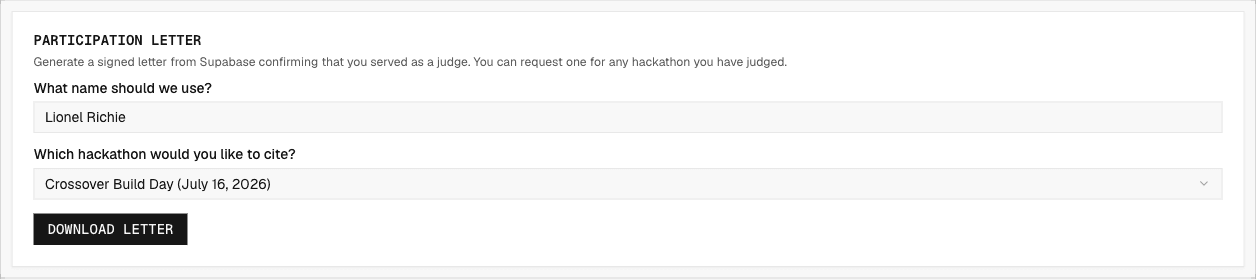
If you need acknowledgement from Supabase about your participation, you can download a PDF on Supabase letterhead with a letter from our Head of Product Marketing.
- Open Settings.
- Find Participation Letter under Judge Profile Settings.
- Choose the hackathon you judged and download the PDF.
Admins
Run the event: set it up, invite judges, and manage the results.
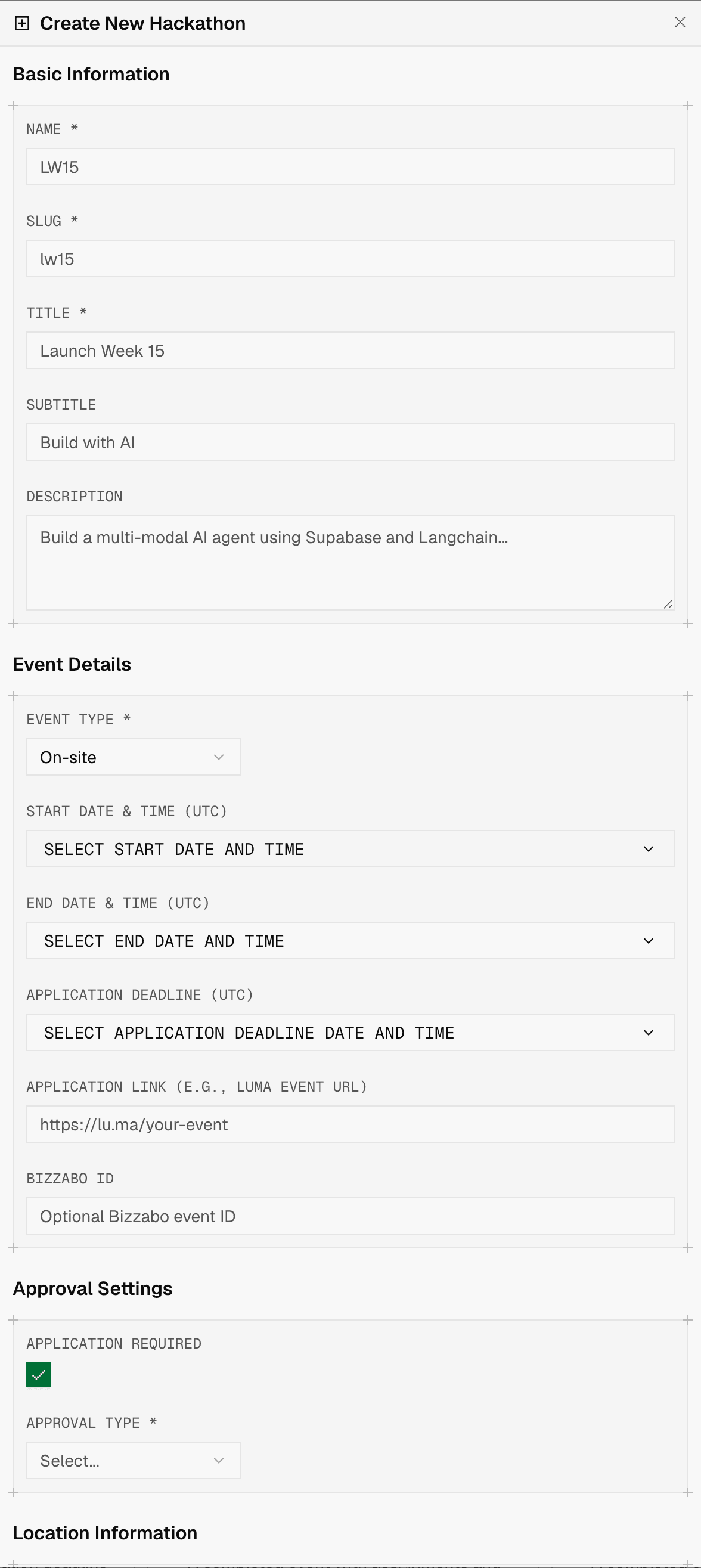
Create a hackathon
Create the event from the admin console. Set its name, dates, and the registration and submission deadlines. For onsite and hybrid events, add the venue.
- Open Admin and go to Hackathons.
- Click Create Hackathon and fill in the details.
- Set the start, end, and deadline dates.
Add a judge
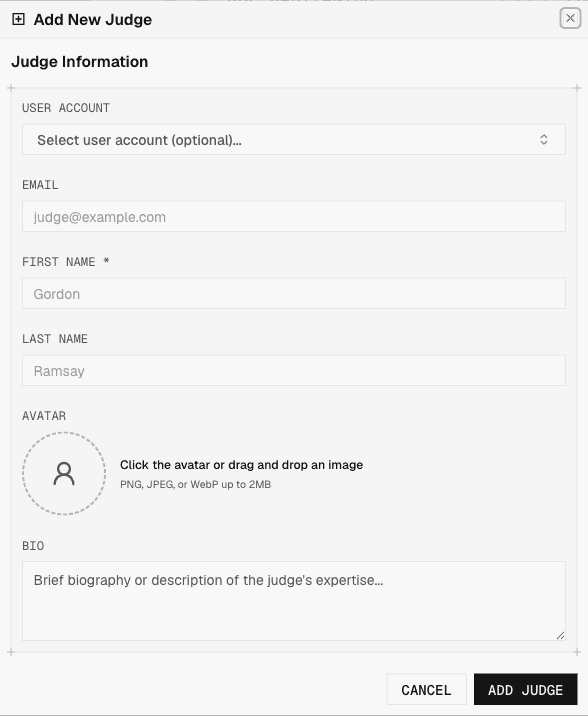
Invite judges by email from the Judges page. Each judge gets an invitation link, accepts it, and creates their account. You can resend an invitation that expired.
- Open Judges.
- Click Add Judges, choose Add a single judge, and enter their name and email. Use Bulk add judges to upload a CSV. Download the template from the dialog, or use
docs/samples/sample-judges.csvlocally (it includes seed judges so skip-existing can be tried). - Assign them to the hackathons they will judge.
Set up categories
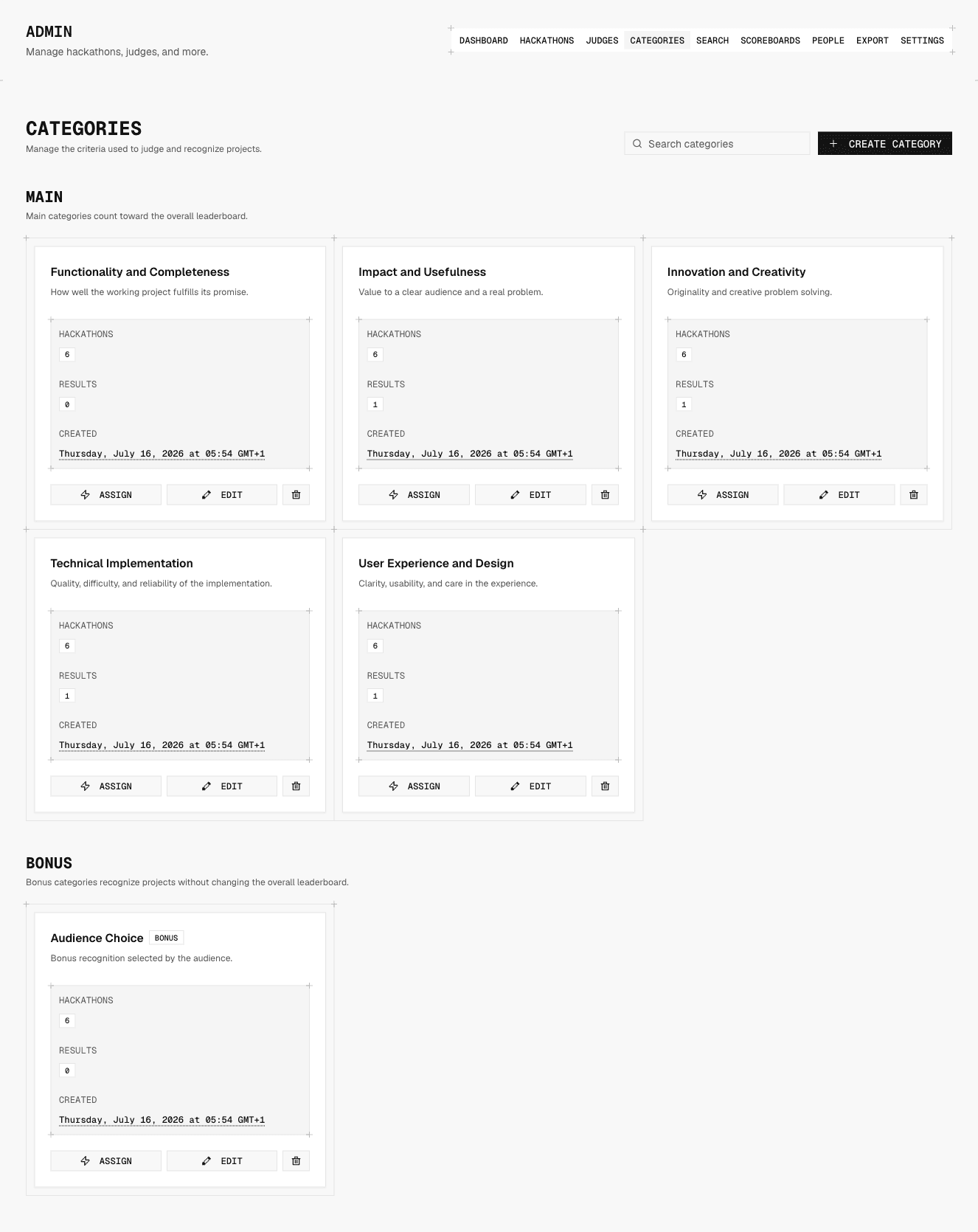
Categories are system-wide. Create them once on the Categories page, then choose which ones apply to each hackathon. Bonus categories recognize projects without changing the main leaderboard.
Judge bonus categories separately
By default, the judge assigned to a project also scores the bonus categories that project entered. You can give each bonus category its own judges instead.
- Open Admin and go to Hackathons.
- Edit the hackathon.
- Under Assignments, turn on Judge bonus categories separately.
- Choose the judges for each bonus category.
- Click Update Hackathon.
- A bonus judge scores only their bonus category, and only on projects that entered it.
- Standard judges score only the standard criteria.
- Each judge on a hackathon is either a standard judge or a bonus judge.
- Judging for the hackathon is complete when the standard judges finish. Bonus judges can keep scoring after that.
- A bonus judge names their category's winner from the judge Overview tab. The winner shows on Final Scores right away, and on the public hackathon page once results are published.
- This setting and the bonus judges lock once judging starts.
Kick off judging
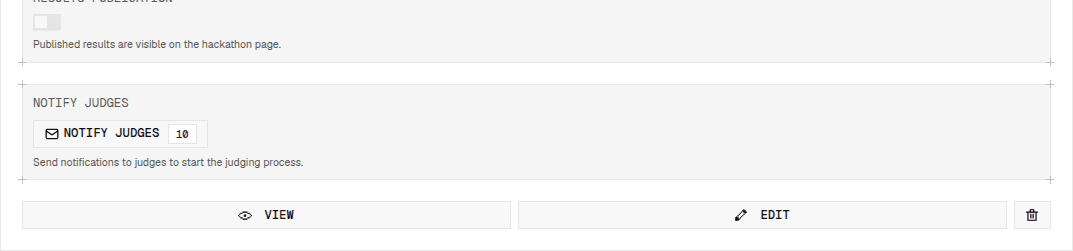
Open Admin and go to Hackathons. Each event card has Notify Judges. Use it when projects are ready.
- Open Admin and go to Hackathons.
- On the hackathon, click Notify Judges.
- In Send Judge Notifications, click Send Notifications.
- When the event has no assignments and no votes, Notify Judges first gives each submitted project to one judge, then emails the judges to begin judging.
- When the hackathon judges bonus categories separately, each project that entered a bonus category also goes to one of that category's judges.
- When assignments already exist, it sends the email only. The existing roster is left unchanged.
- When anyone has already scored and nothing is assigned, you will receive an error: Cannot distribute submissions after judging has started. You cannot redistribute after judging has begun.
Reassign judges
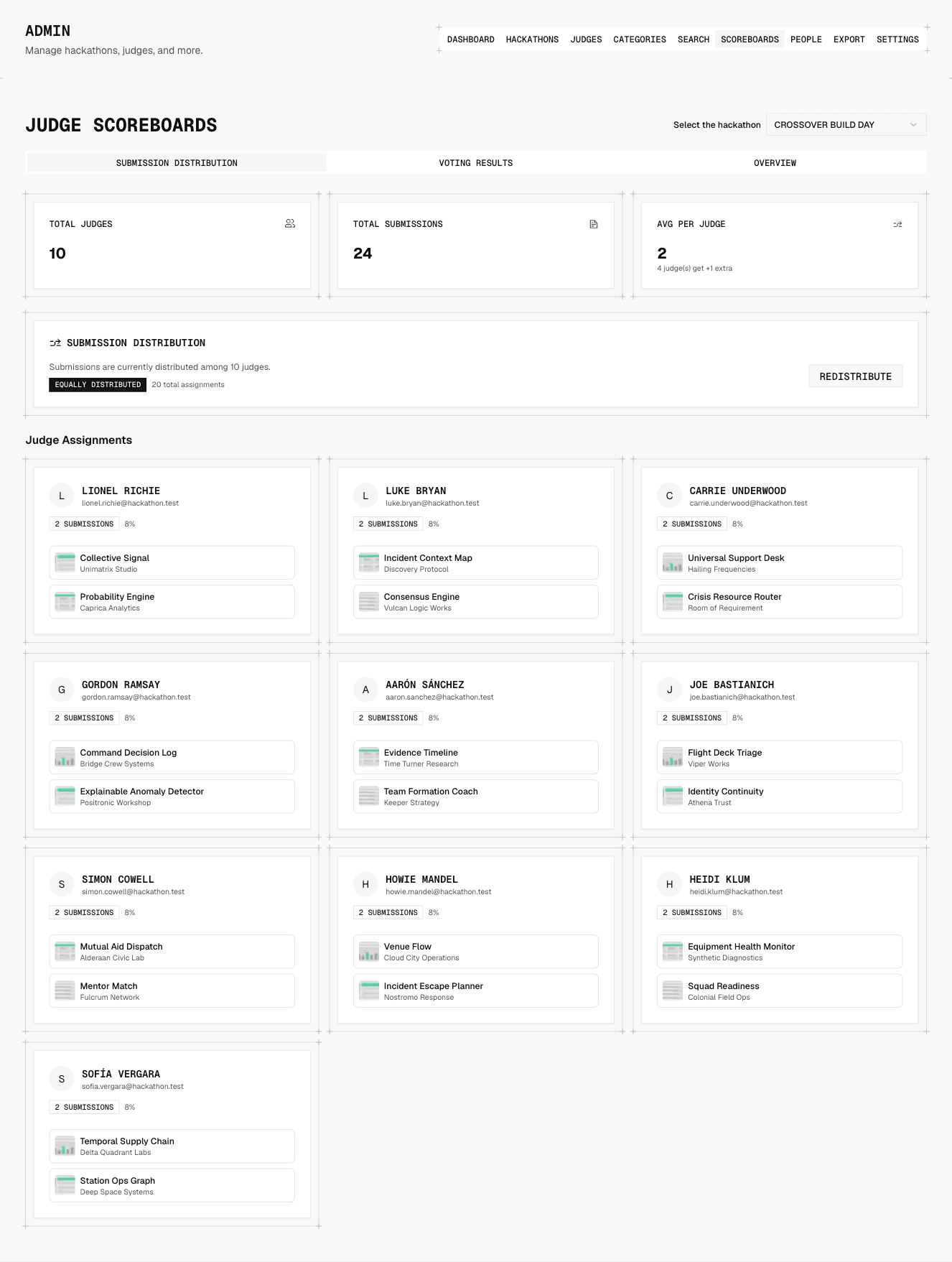
Judges sometimes become unresponsive during the scoring process. If this is the case, you can reassign their projects to another judge. Go to the Scoreboards tab in the Admin view. Click on the Submission Distribution tab. Click the Reassign projects link.
You will then select the judge to whom you want to assign projects. And then select the projects you want to reassign to that judge. Then click the Reassign button.
To reassign projects across multiple judges, repeat the process.
View live results
The Scoreboards page has Voting Progress for viewing live judging results, and Final Scores for category totals plus finalist and winner selection.
Remember to pick finalists and/or winners
Audience display
The room page at /[hackathon]/display is public. The top fifth shows the current state: not started, underway, judging in progress, or judging completed, with the matching stat (teams and people registered, then projects submitted). During judging the same strip holds the live progress bar, which turns green when scoring is done. The rest of the screen cycles public GitHub trivia. Admins and super admins get a quiet Reveal results control that replaces the trivia with every selected finalist, no scores. When winners are saved, the room reveals from last place on its own and stops before the podium. The operator clicks once each for third, second, and first. With only finalists, they come in one after another in a random order.
Send a message
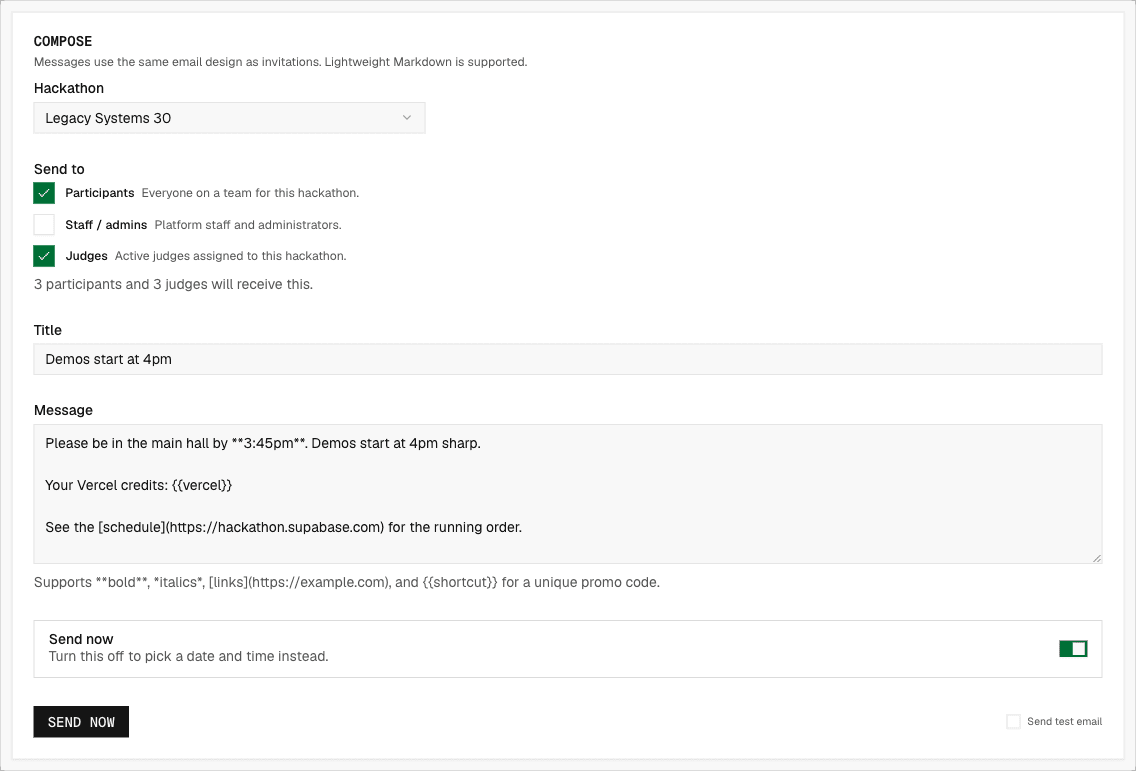
Email everyone involved in a hackathon from one place. Pick the event, choose who should receive it, write the note, and send it now or at a set time. Each person gets one email even if they belong to more than one audience.
- Open Admin and go to Messages.
- Choose the Hackathon. The audience count updates as you tick Participants, Staff / admins, and Judges.
- Write a Title, which becomes the email subject, and the Message. Bold, italics, and links work: **bold**, *italics*, and [text](https://example.com).
- Leave Send now on, or turn it off and pick a date and time. Scheduled messages go out within a few minutes of that time.
- Click Send now or Schedule message.
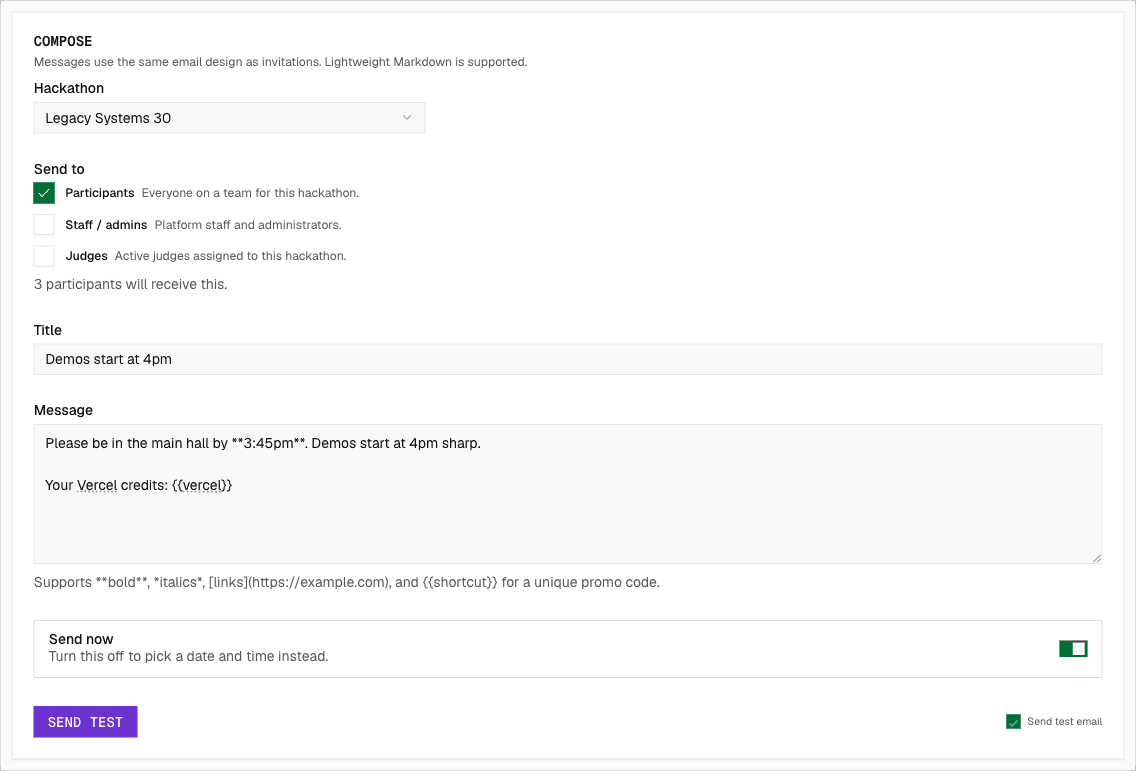
Send yourself a test first
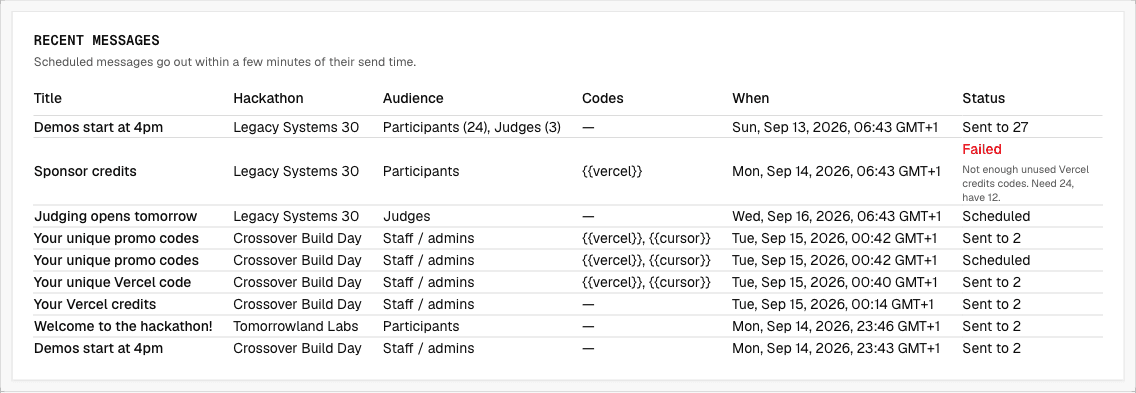
Recent messages lists what was sent and what is still scheduled. A message that could not be sent shows Failed with the reason, for example a promo shortcut that ran out of codes. Fix the cause and send a new message; failed messages are not retried.
Promo codes
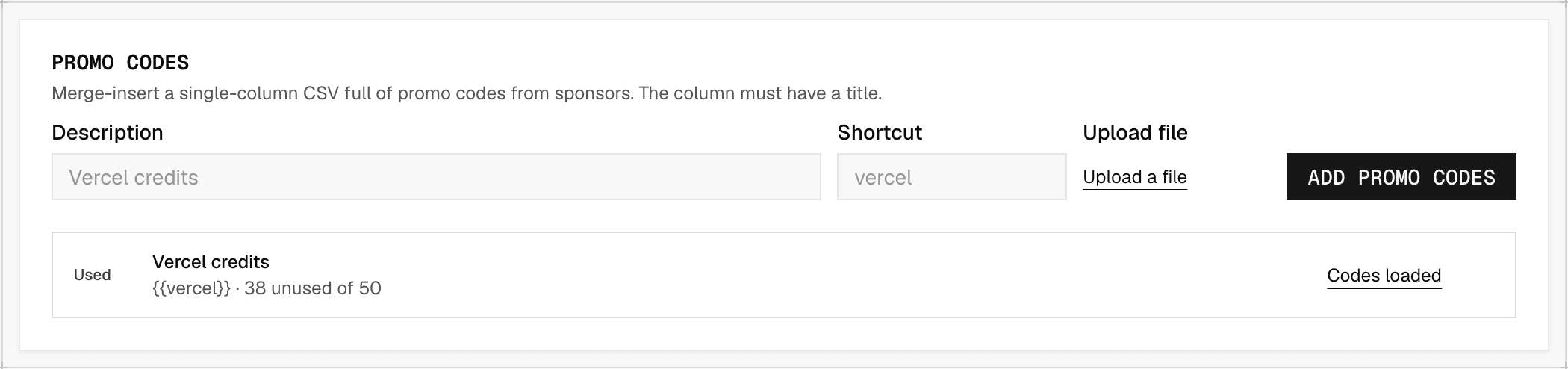
Sponsors often give every participant their own credit code. Upload the codes once, give the batch a shortcut, and write the shortcut in a message. Each recipient gets a different code, and a code is never sent twice.
- On Messages, pick a hackathon so the Promo codes card appears.
- Enter a Description such as Vercel credits and a Shortcut such as vercel. Shortcuts start with a letter and use letters, numbers, hyphens, or underscores.
- Upload a CSV with one column. The first row is the column title; every row after it is one code. Duplicates are skipped.
- Click Add promo codes. Upload more codes to the same shortcut later from its row.
- In the message body, write the shortcut in double braces, for example: Your credits: {{vercel}}.
- The card shows how many codes are unused. A send needs at least one unused code per recipient for every shortcut in the message, and refuses before anything goes out if a batch is too small.
- Used marks a batch that has handed out codes. Deleting a batch removes its codes, including the record of who received which one.
Handle bad actors
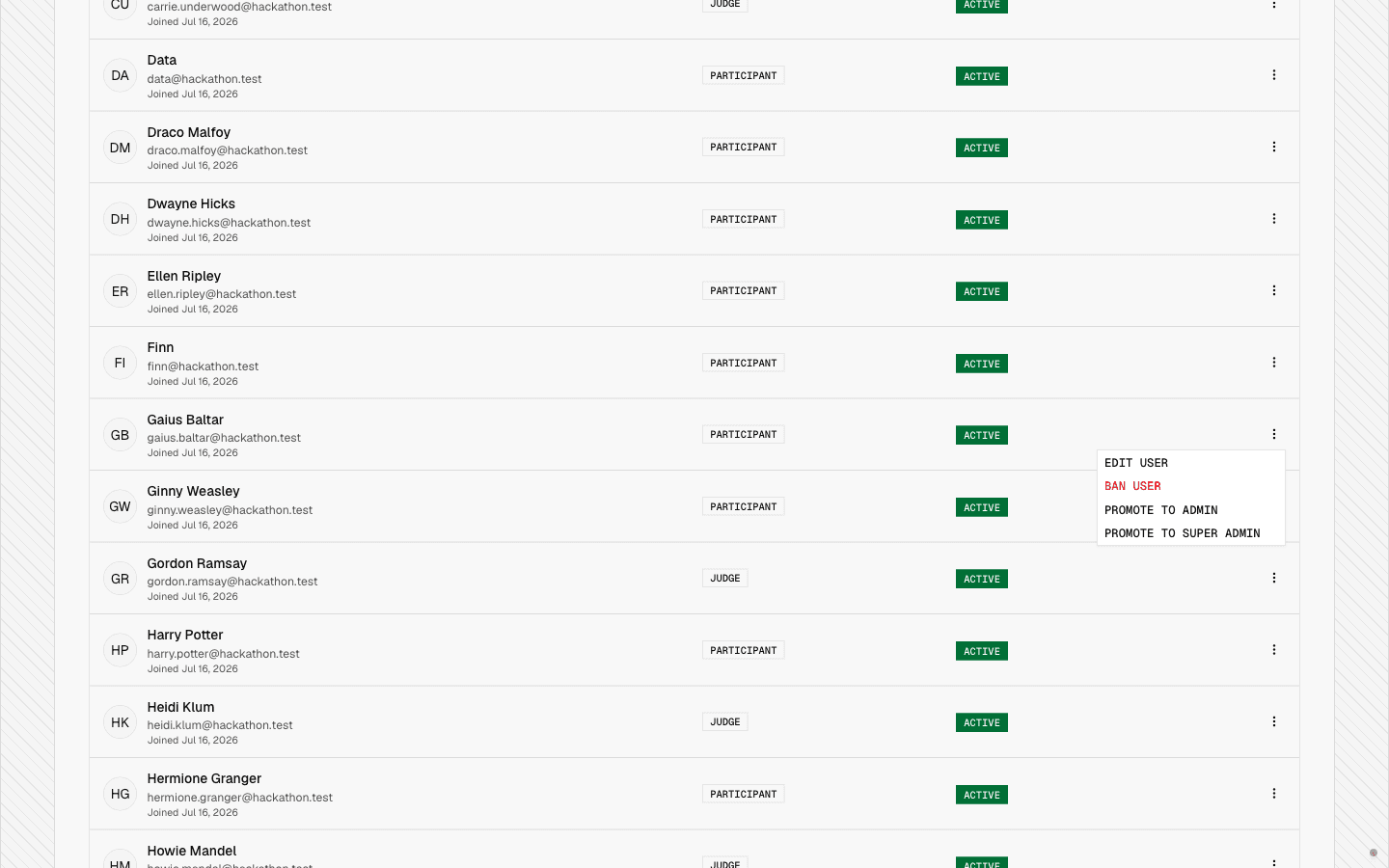
Super admins manage people from the People tab. Search for a person, open them, and ban them to block their access and stop repeat applications. You can reactivate a banned account later.
- Open People and find the person.
- Open their actions and choose Ban.
- Reactivate from the same menu if you need to.
Fair play
You set the rules and the tool enforces them. Deadlines are fixed and cannot be moved, by judges or by admins.
We encourage participants to reuse code, libraries, and skeleton projects from past work.